See every report where it actually is.
The public reporting map shows resident reports in context, with filters and sorting that make patterns easy to spot. In winter, a street-status mode shows which streets residents report as plowed and which staff have verified.
Lists of complaints hide the patterns that matter.
A spreadsheet of complaints doesn’t show that five drainage reports sit on the same block, or that one neighborhood keeps reporting the same corner. Residents can’t see what has already been reported either, so they report it again.
- Clusters of related issues are invisible in a list
- Residents can’t check whether an issue was already reported
- Storm-day calls spike because nobody can see street conditions
How the map works.
- Step 1
Reports appear as pins
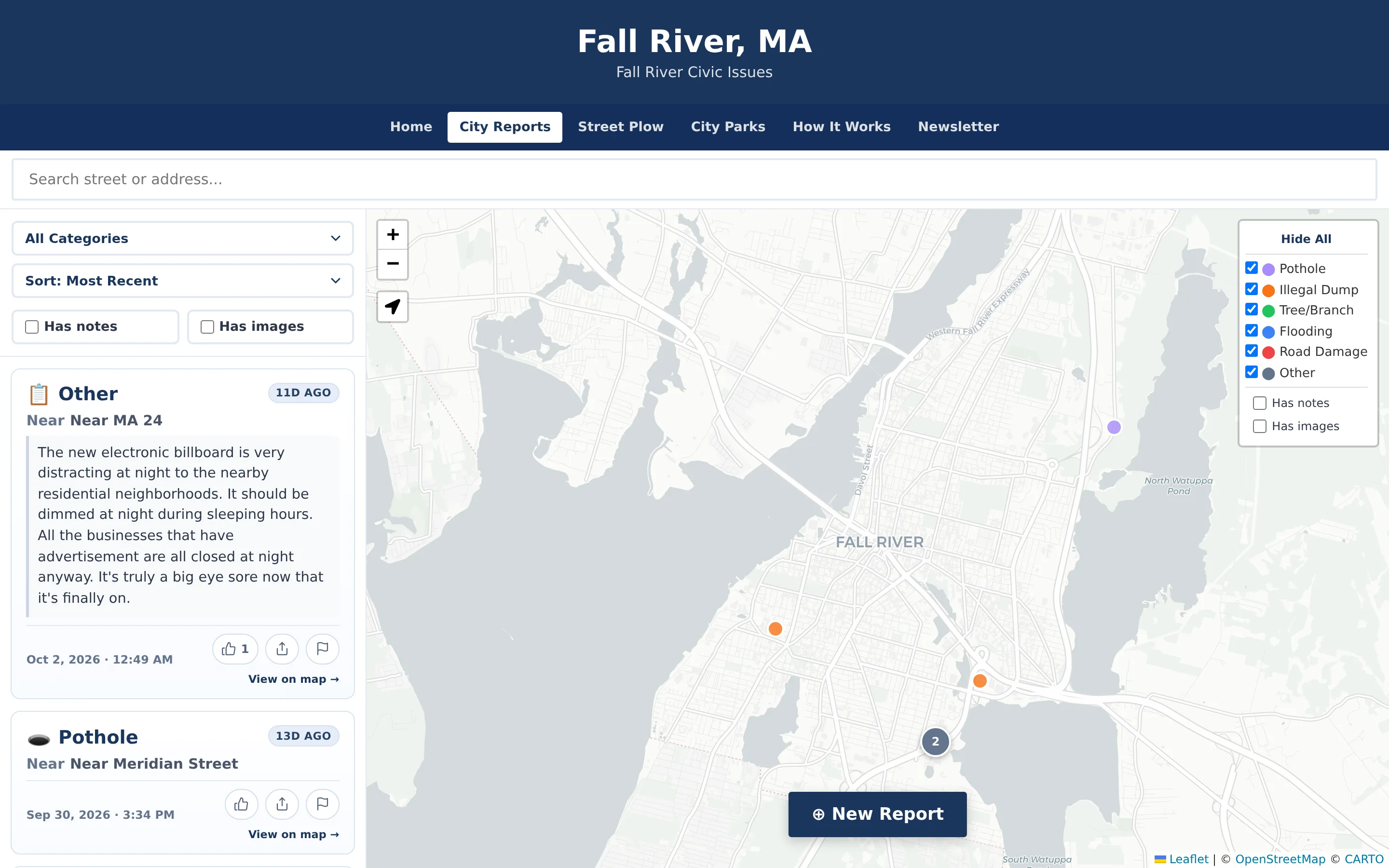
Each report shows as a color-coded pin by category. Nearby pins cluster when zoomed out.
- Step 2
Filter and sort
Filter by category, show only reports with notes or images, and sort by most recent, oldest, or most voted.
- Step 3
Open a report
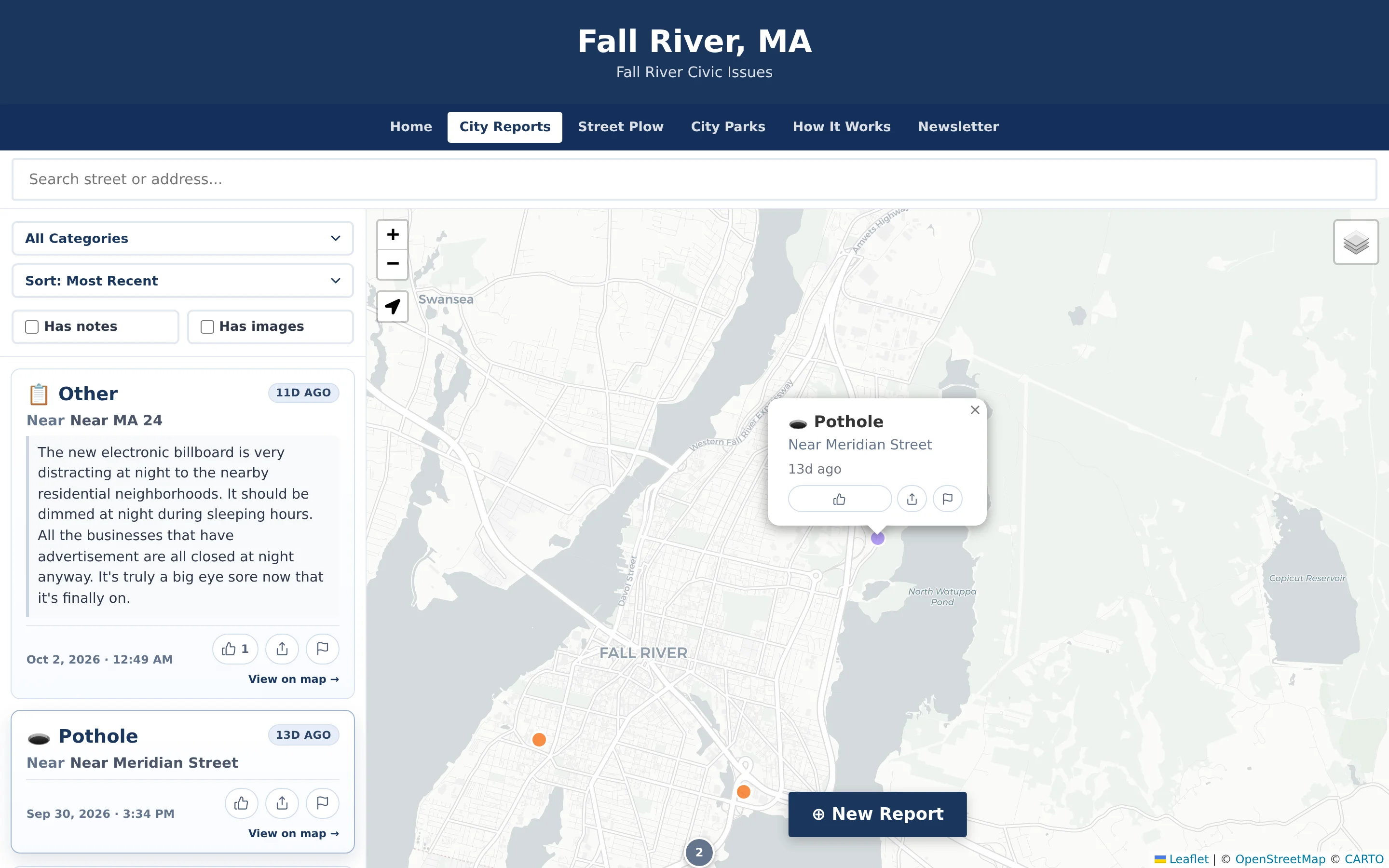
A popup shows the category, approximate location, and age, with buttons to confirm, share, or flag.
- Step 4
Switch to street status
During storms, a separate street map shows plowed, not plowed, unknown, and staff-verified streets.
Interactive Reporting Maps in detail
A list and a map that stay in sync.
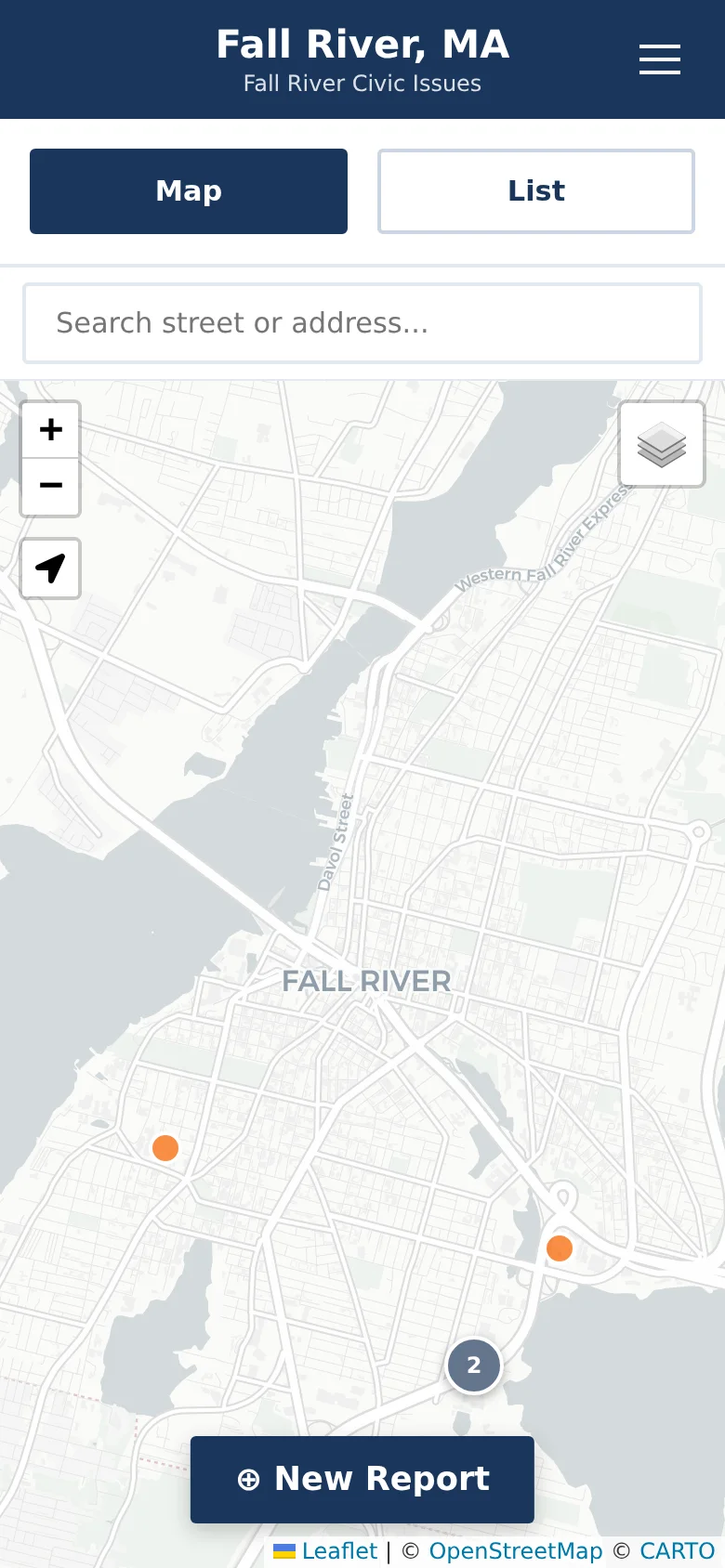
On a desktop, the report list sits beside the map, and selecting a report highlights it in both. On a phone, residents switch between Map and List tabs. Locations are shown as “near” the closest street rather than a full address, and layer toggles let anyone hide or show categories to focus on what they care about.
- Category layer toggles with Show All and Hide All
- Has notes and Has images filters
- Map and List tabs on phones
A street-by-street view during storms.
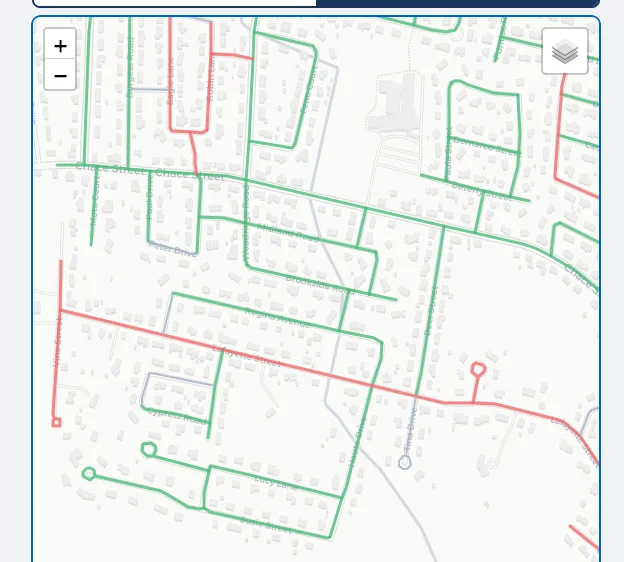
Street-status mode replaces individual pins with whole streets. Residents mark a street Plowed or Not Plowed, and each street’s color reflects the majority of recent votes: green for plowed, red for not plowed, gray for unknown, and gold for streets authorized staff have marked City Verified. Summary counts show the overall picture at a glance.
- Green, red, gray, and gold street status
- Majority-vote status from resident reports
- Activity window to focus on recent votes
See where and when residents are reporting.
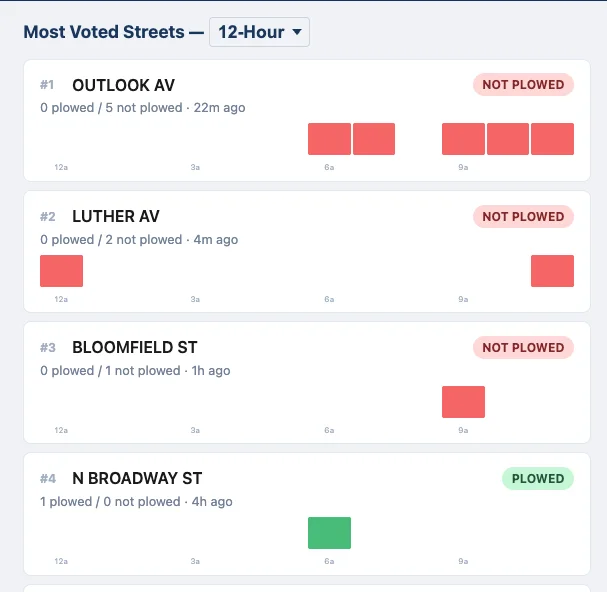
A Most Voted Streets ranking shows which streets residents are reporting most, with hourly activity bars that show when the votes came in. After a storm, timelapse playback replays the map over a chosen date range, which helps public works review where conditions lagged and supports public updates.
- Most voted streets with hourly activity bars
- Timelapse playback with speed controls
- Date-range selection for reviews
Example: spotting a drainage pattern in spring
An illustrative example of how staff in a town might use the public map to spot a pattern after a spring thaw.
Over a few days, residents submit several Flooding reports during a rainy stretch after snowmelt.
A highway department supervisor filters the map to the Flooding category and sees the pins grouped along one low stretch of road.
They turn on the Has images filter and review approved photos showing water covering the roadway near a culvert.
Sorting by most voted shows which report other residents have confirmed most often.
The supervisor adds the culvert to the department’s inspection list and staff mark the reports fixed once the work is done.
Practical benefits for your municipality.
Patterns become visible
Clustering and category filters reveal problem areas that a list of complaints would hide.
Residents see what’s known
A public map lets residents check before reporting, and confirm an existing issue instead.
Fewer storm-day calls
Pointing residents to a public street-status map can reduce routine status calls to departments during storms.
Works on any device
The map adapts to phones, tablets, and desktops, with no app to install.
Keep exploring.
Features that work alongside interactive reporting maps, in CivicReport and across the CivicTally portfolio.
Who can see the reporting map?
The reporting map is public. Anyone can view reports, filter them, and confirm, share, or flag them. Park issue reports, where a parks module is used, go directly to staff and are not shown on the public map.
Does the map show residents’ exact addresses?
Reports are pinned where the issue is, and the public listing describes the location as near the closest street. Residents are not asked for their own name or address when reporting.
How is street status decided in street-status mode?
Residents vote Plowed or Not Plowed for each street, and the displayed status reflects the majority of votes. Residents can vote again on the same street after an hour. Streets that authorized staff mark City Verified are shown in gold.
Can we hide categories or filter the map?
Yes. Anyone using the map can filter by category, toggle category layers on and off, show only reports with notes or images, and sort by most recent, oldest, or most voted.
Is the map a live view of municipal operations?
No. The map shows what residents have reported and what staff have marked, such as verified streets. It does not track vehicles or crews, and it is not a substitute for official emergency information.
See interactive reporting maps with your own municipality in mind.
We’ll walk through CivicReport using your departments, categories, and goals — and answer the practical questions about setup.