Every incoming report, in one staff workspace.
The administration dashboard is where staff review what residents submit, keep the public map accurate, and track issues through to resolution. Access is limited to authorized staff who sign in.
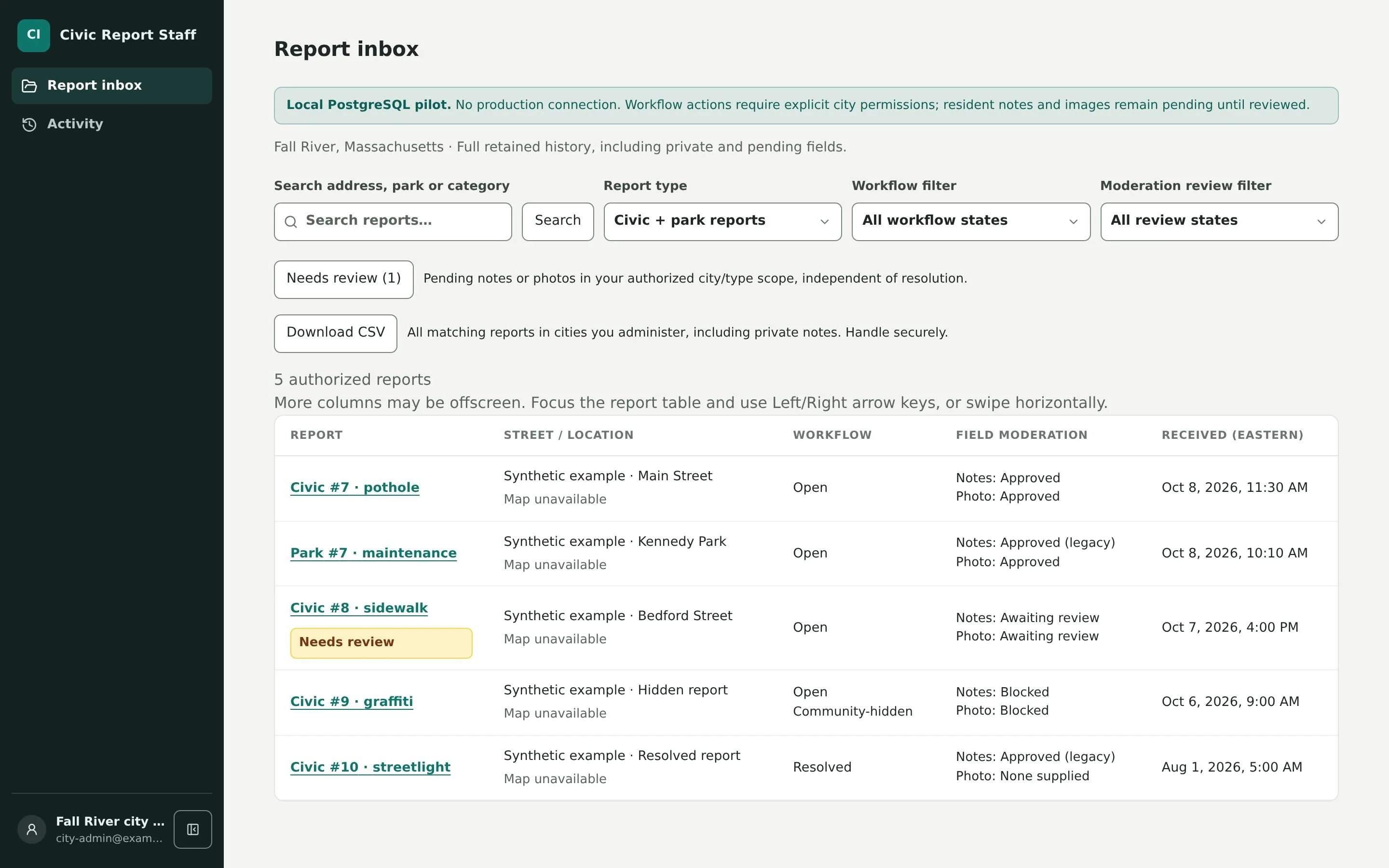
A public reporting tool still needs someone minding it.
Opening a public channel means taking responsibility for what appears on it. Staff need a practical way to see what came in, keep inappropriate content off the public map, and record what has been fixed, without a full-time moderator or a separate spreadsheet.
- Resident notes and photos need review before they’re public
- Flagged or abusive submissions need a fast way to come down
- Leaders want records they can bring to a meeting
How staff use the dashboard day to day.
- Step 1
Sign in
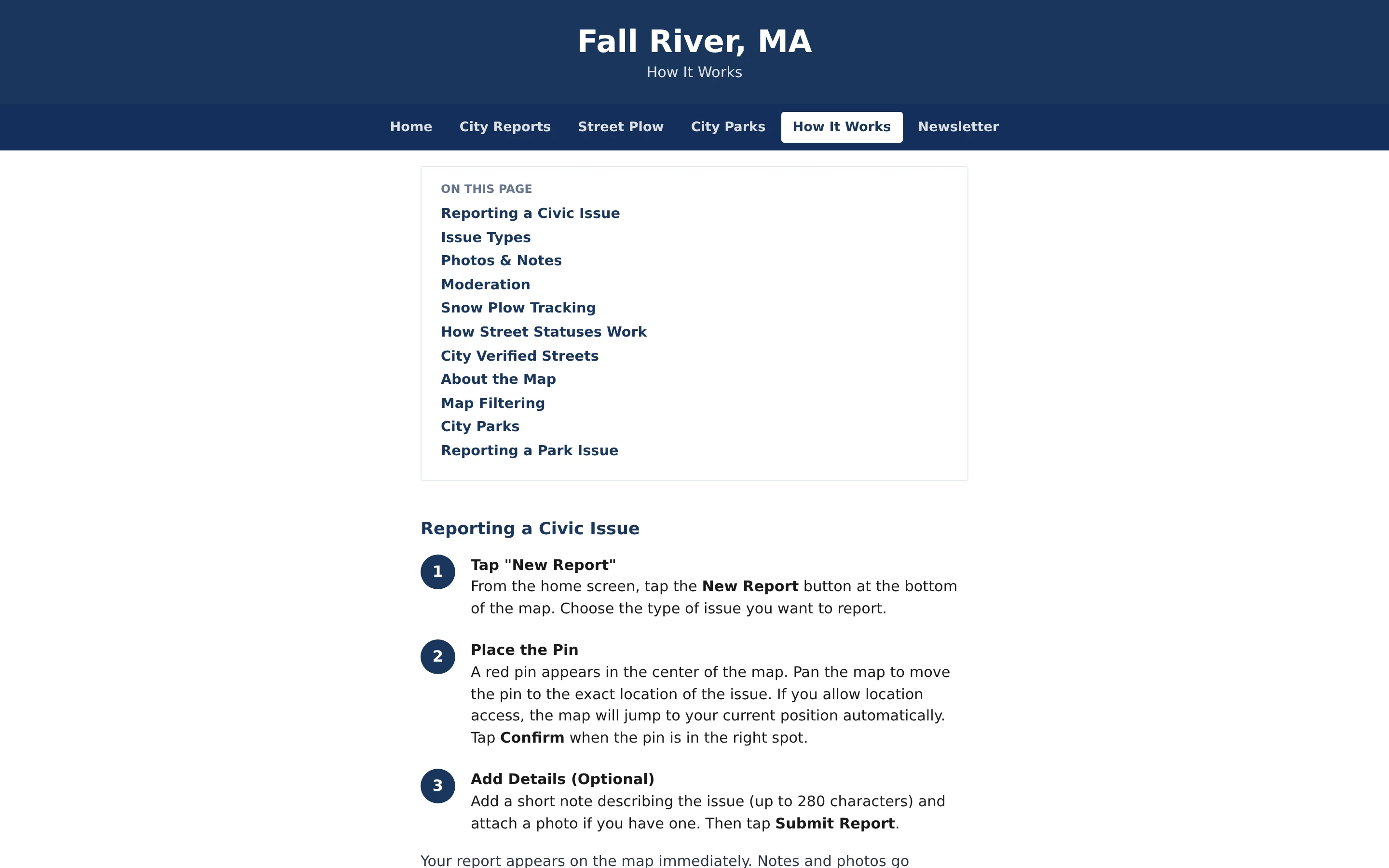
Authorized staff sign in to a login-protected administration area. Residents never see it.
- Step 2
Work the review queues
Reports are grouped into Pending, Blocked, Hidden, and Fixed views, so staff can see what needs attention first.
- Step 3
Approve, hide, or remove
Approve resident notes and images for public display, hide reports that shouldn’t be shown, or delete them entirely.
- Step 4
Close the loop
Mark issues fixed, verify outcomes, and export records to CSV for meetings and reports.
Admin Dashboard in detail
Four queues that sort themselves.
Pending holds reports with notes or images waiting for review. Blocked collects submissions stopped by the automated moderation filter, so staff can confirm the filter got it right. Hidden shows reports taken down by community flags, and Fixed keeps resolved issues out of the active list without losing the record.
- Pending: notes and images awaiting staff approval
- Blocked: submissions stopped by automated screening
- Hidden and Fixed: flagged and resolved reports kept on record
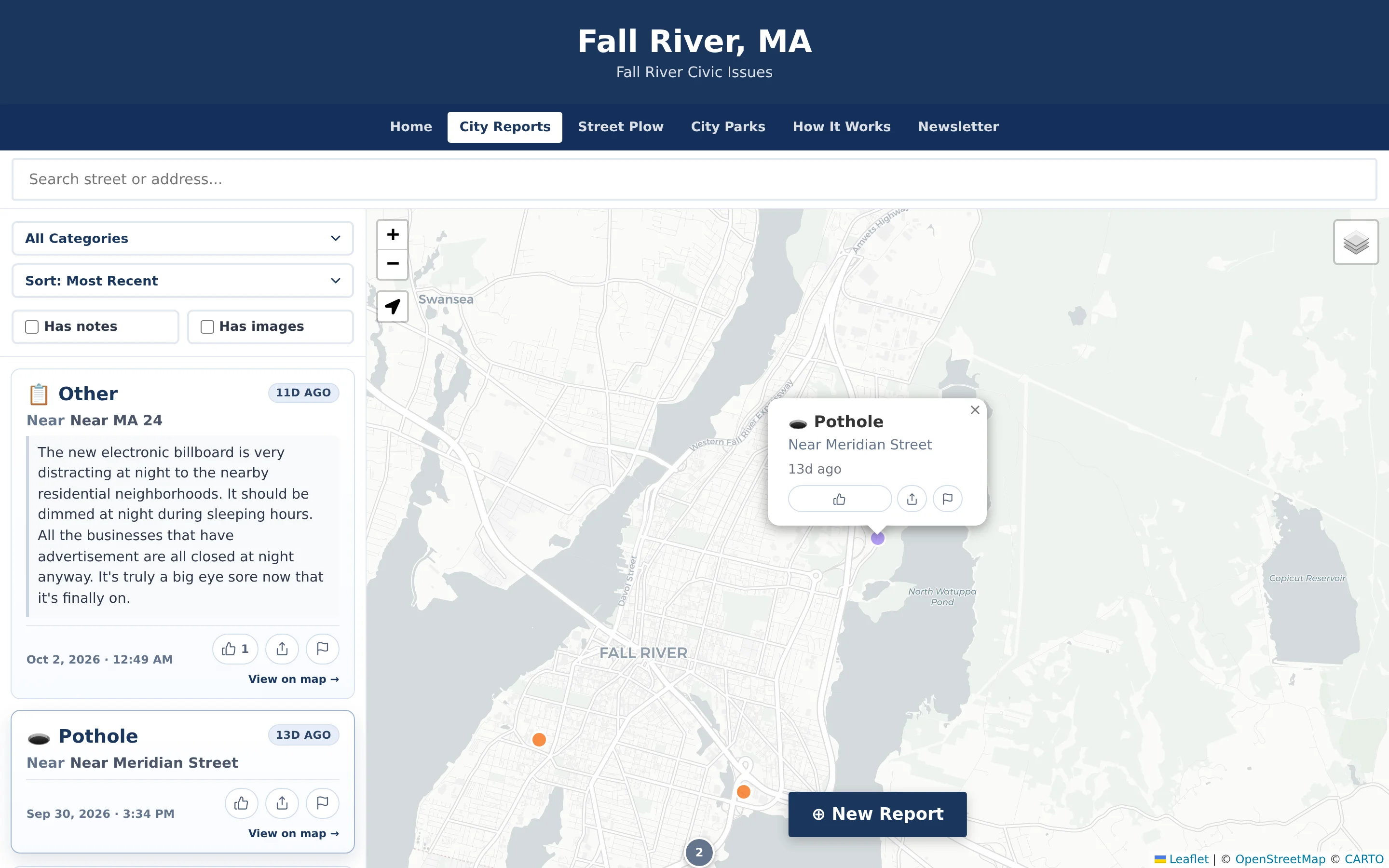
Residents help keep the map clean.
Every public report has a flag button. When a report collects three or more community flags, it is hidden automatically and moved to the Hidden queue for staff to review, so a problem post doesn’t sit on the map until someone checks in. Signed-in staff also see an admin bar on the public map and can hide a report directly from there.
- Automatic hiding after three or more community flags
- Approve Notes and Approve Images as separate actions
- Hide reports from the public map while signed in
Verification, announcements, and exports in the same place.
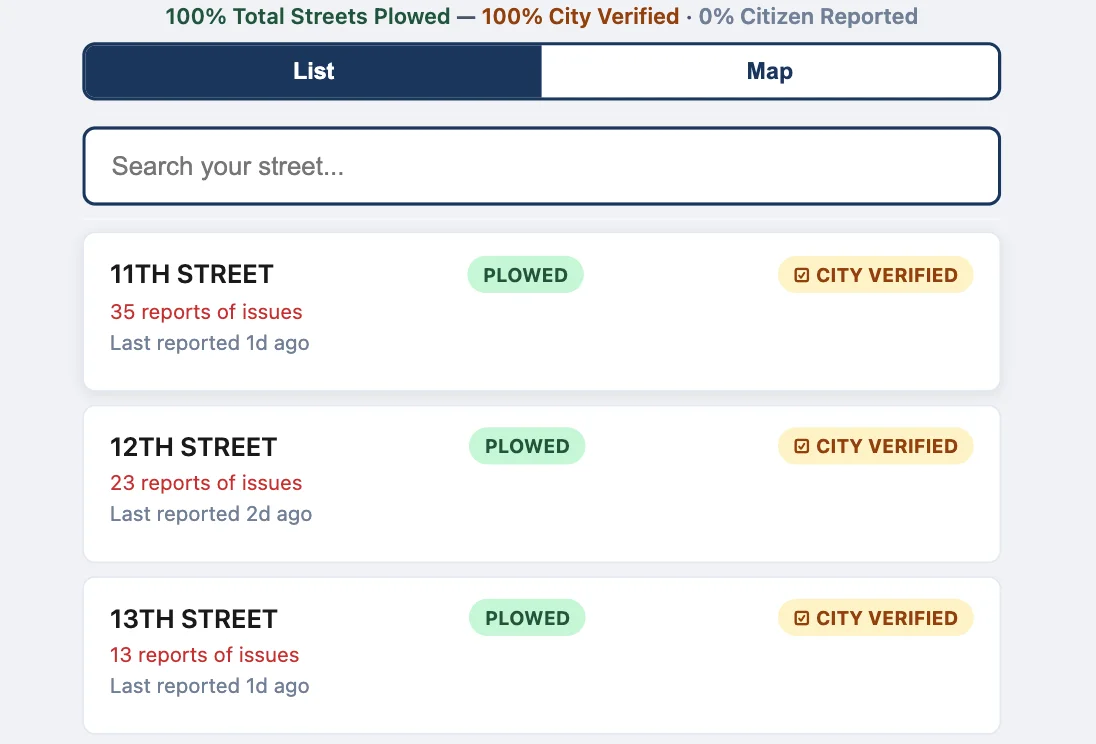
Beyond moderation, the dashboard holds the tools staff use to communicate outcomes. Staff can mark reports fixed, set the “City Verified” status on streets in street-status mode, and post a short announcement banner on the public home page. Report and street lists export to CSV for council updates, grant reporting, or after-action reviews.
- Mark Fixed and staff verification
- Home page announcement banner
- CSV export of reports and street statuses
Example: a Monday morning review
An illustrative example of how a public works clerk in a town might work through the dashboard at the start of the week.
The clerk signs in and opens the Pending queue to see weekend reports with notes or photos waiting for review.
Most notes describe the issue clearly, so the clerk approves them. One photo shows a neighbor’s license plate, so the clerk leaves the image unapproved and approves only the note.
In the Hidden queue, a report pulled down by community flags turns out to be a joke post, so the clerk deletes it.
Two potholes repaired by the road crew on Friday are marked fixed and move to the Fixed queue.
Before the next select board meeting, the clerk exports the report list to CSV to summarize what residents reported that month.
Practical benefits for your municipality.
A public map you can stand behind
Review queues and community flags keep inappropriate content off the public site without constant monitoring.
One shared record
Every report lives in one place, regardless of which department handles it or how it was resolved.
Little training required
Clear queues and a short list of actions make the dashboard practical for clerks and supervisors, not only IT staff.
Records ready for meetings
CSV exports give administrators something concrete to share with boards, councils, and grant reviewers.
Keep exploring.
Features that work alongside admin dashboard, in CivicReport and across the CivicTally portfolio.
Who can access the administration dashboard?
Only authorized staff. The dashboard sits behind a login, and access is set up with your municipality during implementation. Residents and the public cannot see it.
Do we have to approve every report before it appears?
No. The category and pin appear on the public map right away. Resident notes and photos are screened automatically, and the Pending queue lets staff approve them. Staff decide what to approve, hide, or delete.
What happens when residents flag a report?
Flags are counted on each report. When a report reaches three or more community flags, it is hidden from the public map automatically and appears in the Hidden queue, where staff can review it and delete it if needed.
Can we post notices to residents?
Yes. Staff can post a short announcement banner on the public home page, for example to note a parking ban or a change in collection schedules. It is a one-way notice on the site, not an email or text message to residents.
Can we export our data?
Yes. Staff can download reports, and street statuses where street-status mode is used, as CSV files that open in Excel or any spreadsheet tool.
See admin dashboard with your own municipality in mind.
We’ll walk through CivicReport using your departments, categories, and goals — and answer the practical questions about setup.