Show what is inside each spending area.
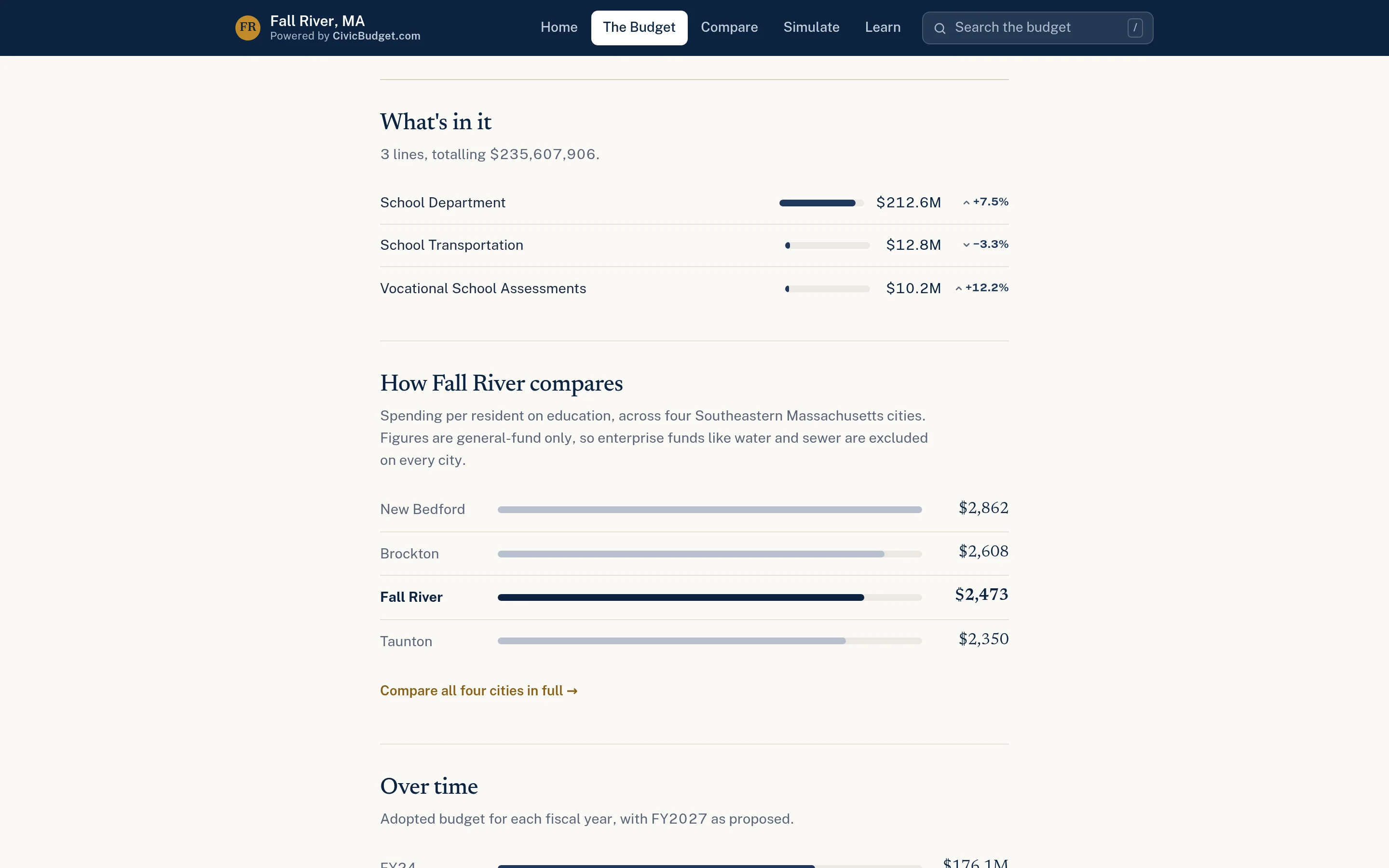
Category and department pages turn budget lines into clear horizontal bar charts with the context residents need: change from last year, cost per resident, and share of the general fund.
A number alone does not explain much.
Budget tables give precise figures, but most readers cannot tell whether a number is large, small, rising, or falling. Without context, a department total invites the wrong conclusions. Staff end up explaining the same comparisons in every presentation and hearing.
- Totals with no sense of scale
- Year-over-year changes are hard to spot
- Revisions during the budget process go unnoticed
How spending visualizations work.
- Step 1
Organize by category
Budget lines are grouped into spending categories, such as education or public safety, that match how your budget is structured.
- Step 2
Chart what is inside
Each category page uses horizontal bars to show its budget lines and how each changed from last year.
- Step 3
Give every department a page
Department pages show the amount, change, per-resident cost, share of the general fund, and a peer comparison where available.
- Step 4
Track revisions
When a budget is revised, department pages show how the figure moved across each published version.
Spending Visualizations in detail
One figure, with all of its context.
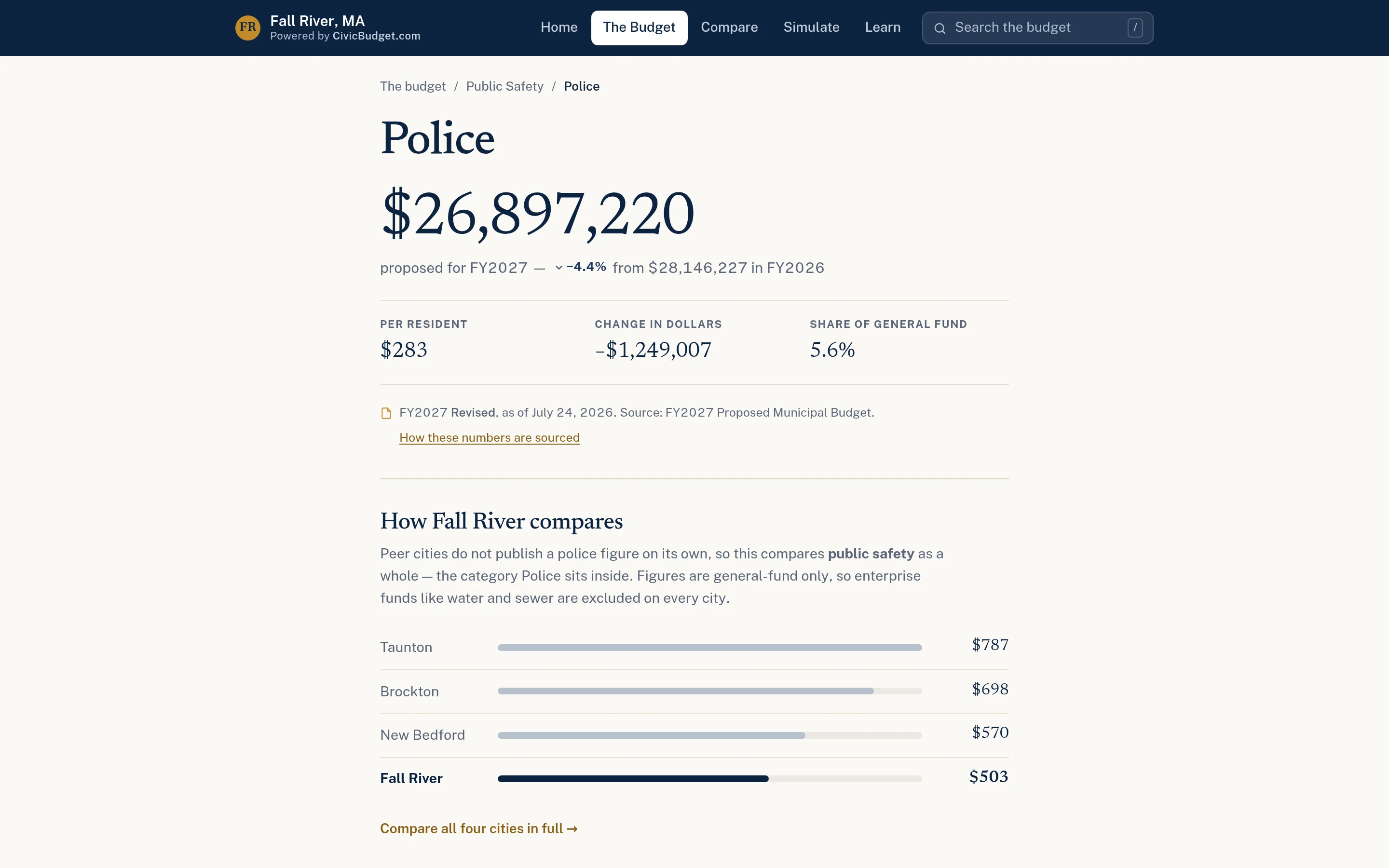
Each department or line has its own page showing the budgeted amount, the dollar and percentage change from the prior year, the cost per resident, and its share of the general fund. Where earlier versions of the budget were published, the page shows how the figure moved from proposed through each revision. Related lines are linked so readers can keep exploring.
- Amount, change, per-resident cost, and share of general fund
- Version history across published revisions
- Peer comparison chart where suitable data exists
Proportions that are obvious at a glance.
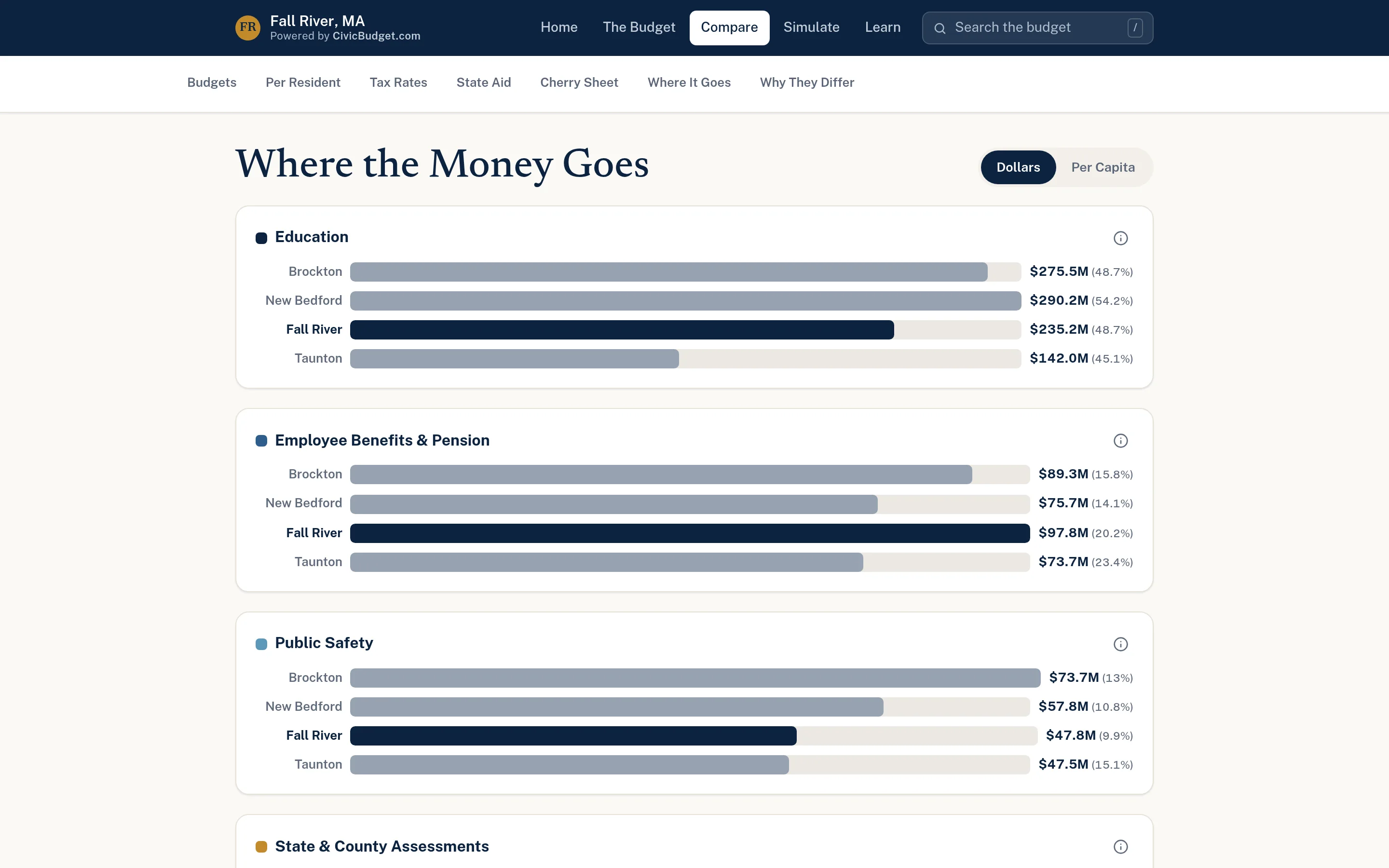
Simple horizontal bar charts show how the general fund divides across major categories such as education, employee benefits, and public safety, in dollars or per resident. Where peer data is available, the same chart places your municipality beside comparable communities. One consistent chart style is used throughout the site, so residents only have to learn it once.
- Horizontal bar charts with labelled amounts
- Dollars or per-resident views
- Consistent chart style across every page
Every chart traces back to a document.
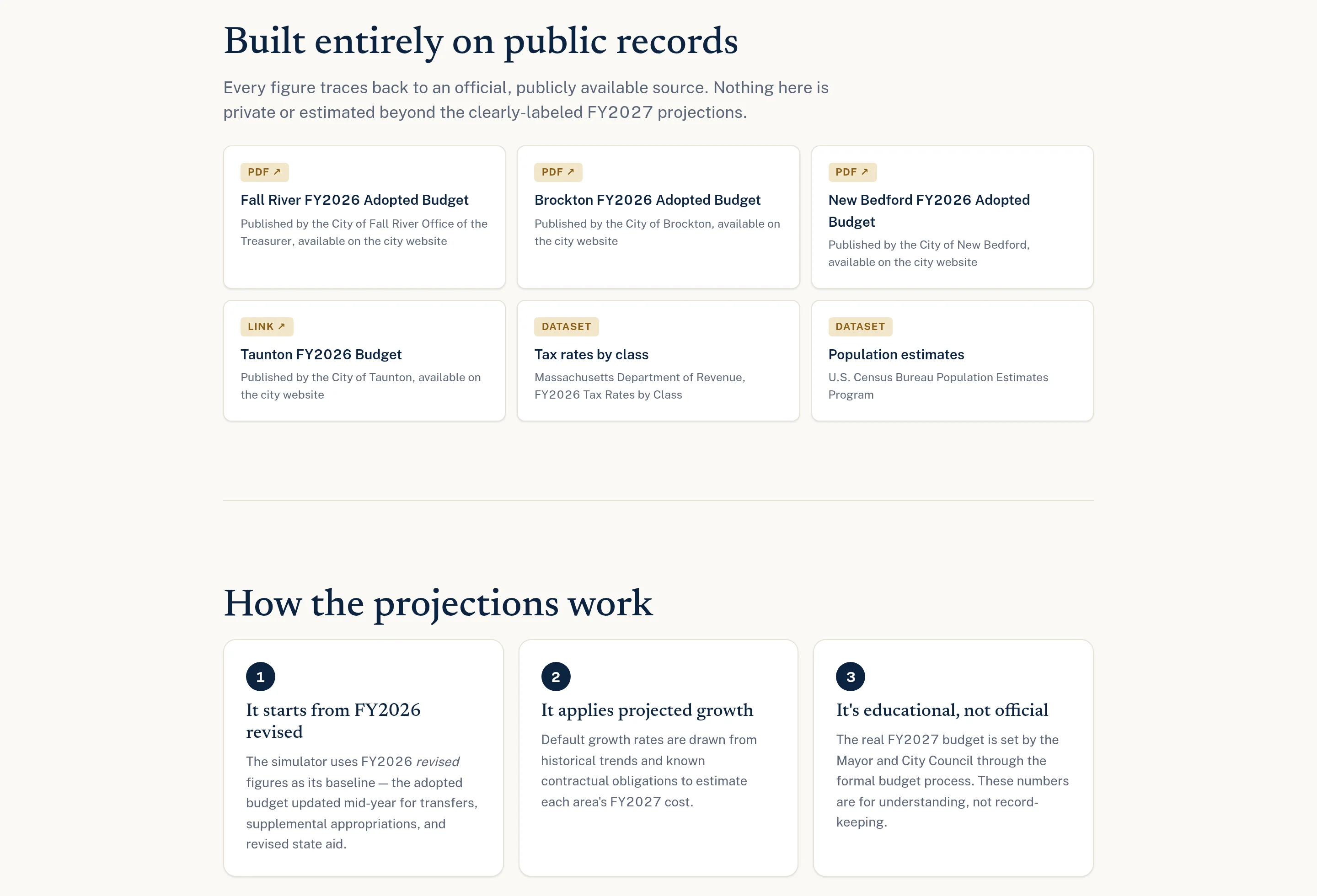
Each data page notes the budget version and date it reflects and cites the official document behind it. A sources and methodology page lists the published budgets and public datasets used, such as population estimates for per-resident figures. Finance staff review the structured figures before launch.
- Budget version and date shown on data pages
- Sources and methodology page
- Figures reviewed with finance staff before launch
Example: preparing for a budget hearing
This is an illustrative workflow showing how a town's finance director might use spending visualizations to support a public hearing.
Charts reflect budget allocations in published documents. They do not show actual expenditures to date.
The finance director is preparing a presentation on the proposed education and public safety budgets.
They open the education category page to show what's inside the category and how each line changed from last year.
They open the police department page to show its per-resident cost and share of the general fund.
Because the budget was revised during the process, they show how the department figure moved between published versions.
They share links to both pages in the hearing notice so residents can review the figures in advance.
Practical benefits for your municipality.
Clearer presentations
Staff can present from live pages instead of rebuilding charts for each meeting.
Changes made visible
Year-over-year changes and budget revisions are shown directly on each page.
Shared facts
Officials and residents work from the same cited figures during budget season.
Easy to share
Every department and category has a page communications staff can link to.
Keep exploring.
Features that work alongside spending visualizations, in CivicBudget and across the CivicTally portfolio.
What kinds of charts does CivicBudget use?
CivicBudget uses clean horizontal bar charts with labelled values. They work well for comparing amounts, changes, and per-resident figures, and stay readable on a phone.
What does a department page show?
The budgeted amount, the change from the prior year in dollars and percent, the cost per resident, and the share of the general fund. Where suitable data exists, it also includes a peer comparison and the figure's history across published budget revisions.
How are per-resident figures calculated?
Per-resident figures divide a budgeted amount by a published population estimate, such as Census Bureau estimates. The source used is listed on the sources and methodology page.
Can the site show changes between budget versions?
Yes. When proposed and revised budgets are published, each version is added, and department pages show how a figure moved from one version to the next.
Do the charts show actual spending to date?
No. They show budget allocations from published documents. CivicBudget does not track transactions or replace your financial systems.
See spending visualizations with your own municipality in mind.
We’ll walk through CivicBudget using your departments, categories, and goals — and answer the practical questions about setup.