Answer budget questions without the PDF.
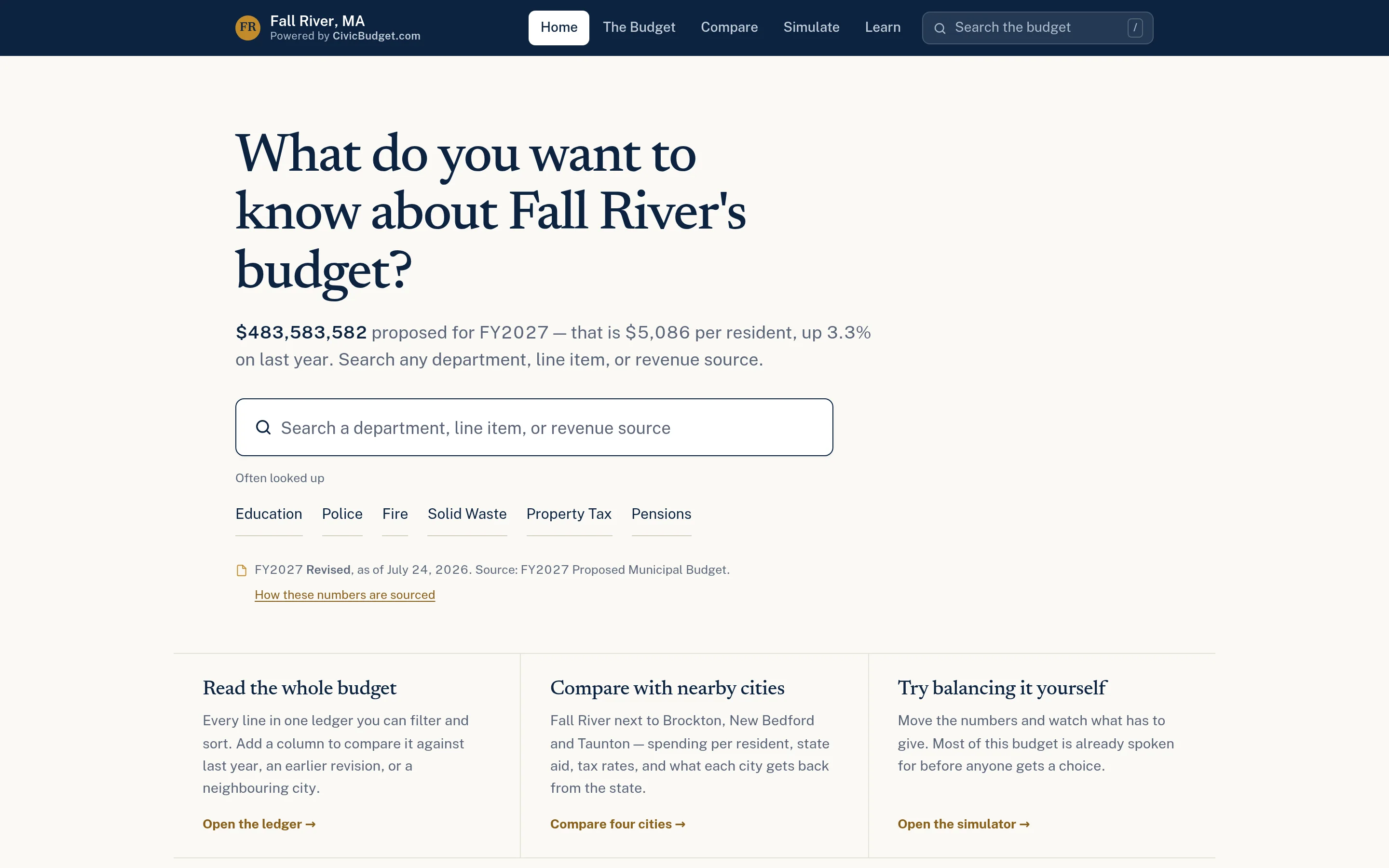
The budget explorer starts with the total, a per-resident figure, and a search box, then lets residents go as deep as they want. Every figure comes from your official budget documents, with the source cited.
The budget book answers every question, slowly.
A municipal budget document contains the answer to most resident questions, but finding it means knowing which section, which department, and which page to look in. Residents give up, and staff spend time pointing people to page numbers. Even simple questions, like what a department costs this year compared with last year, take real effort.
- Answers are buried in long, sectioned PDFs
- Totals lack prior-year or per-resident context
- Staff field the same lookups each budget season
How the budget explorer works.
- Step 1
Start from the total
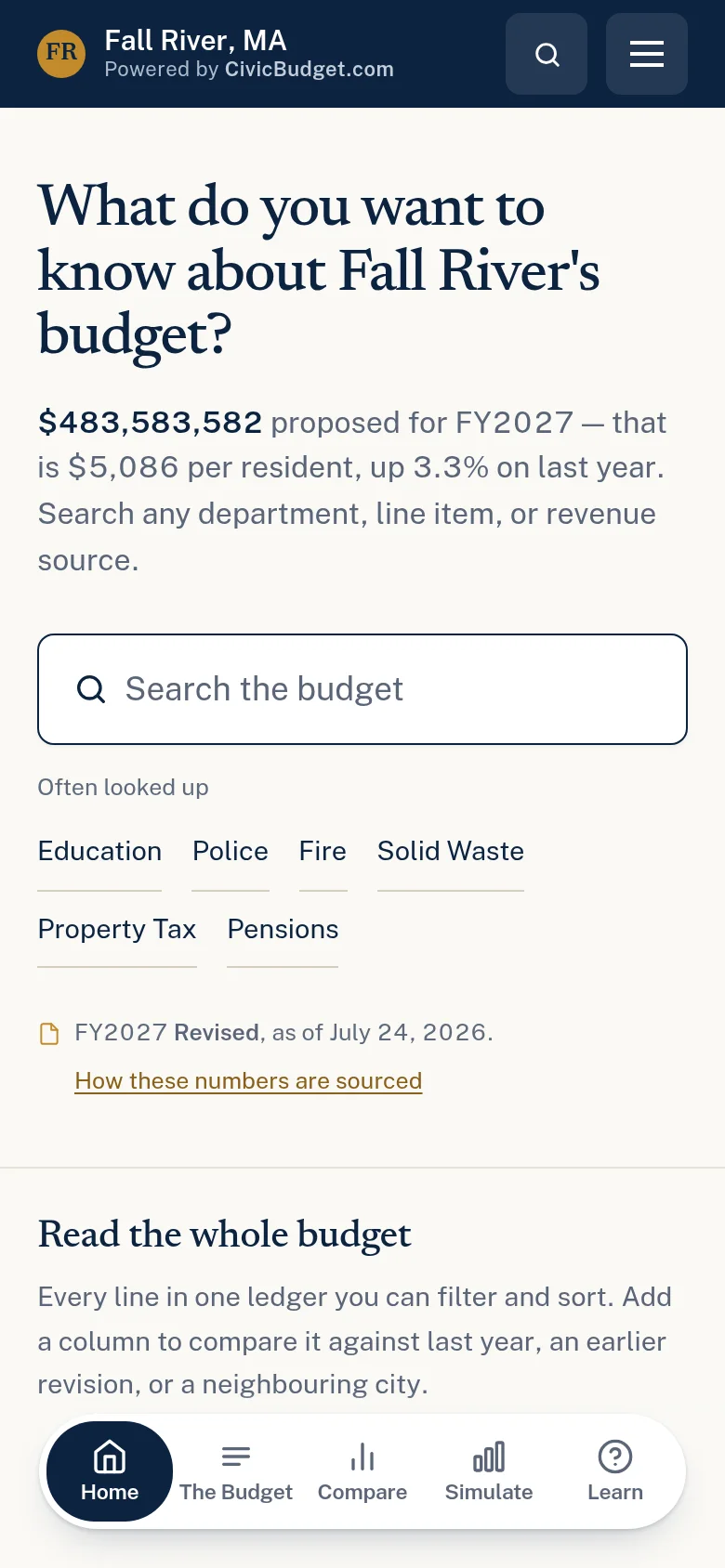
The home page leads with the budget total, the per-resident figure, and the change from last year.
- Step 2
Search as you type
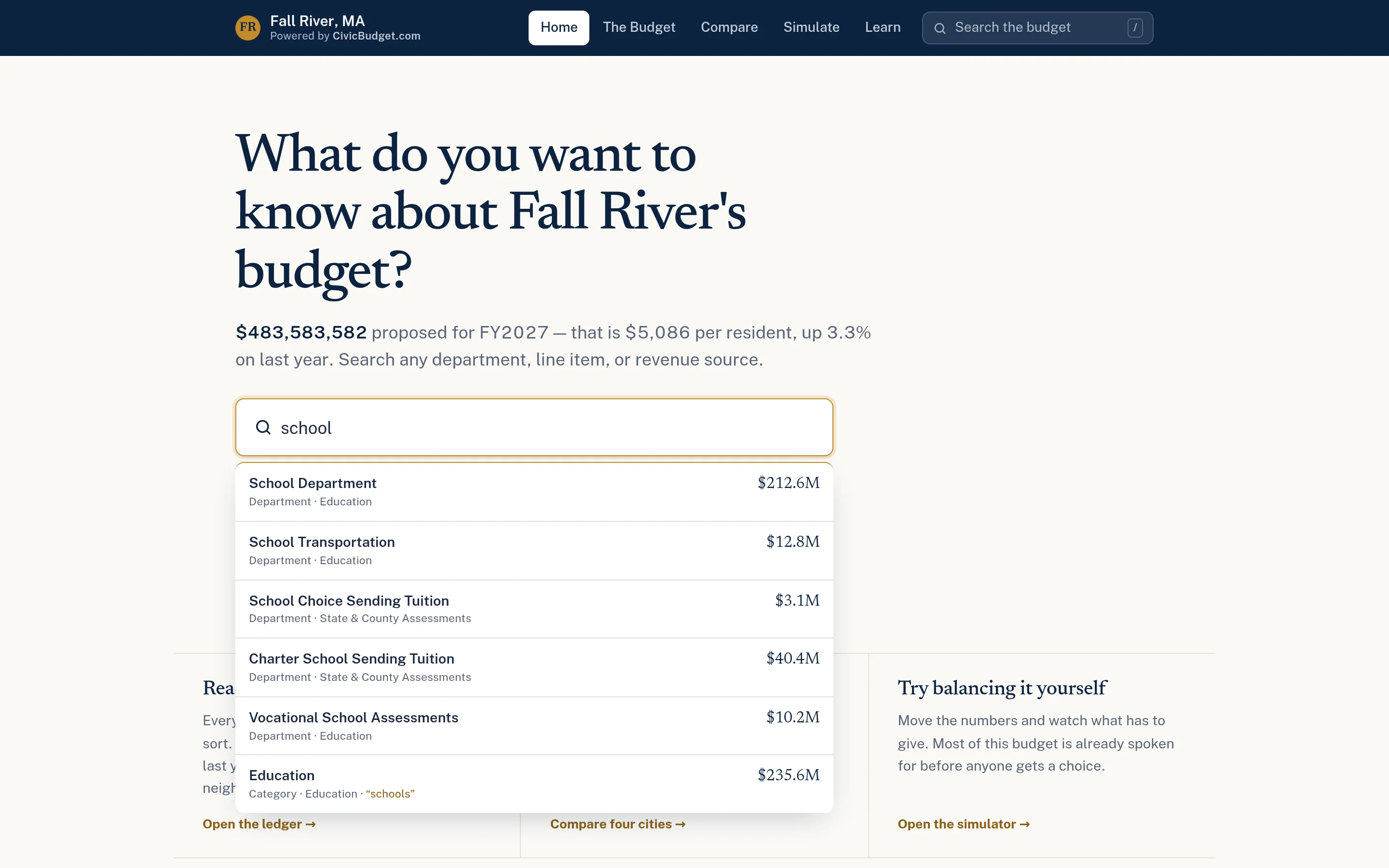
A single search box suggests matching departments, line items, categories, and revenue sources with their amounts.
- Step 3
Open the full ledger
Every appropriation is listed in one sortable, filterable table, with a toggle between spending and revenue.
- Step 4
Drill into a department
Each line opens a page with its amount, change, per-resident cost, and share of the general fund.
Budget Explorer in detail
Type a word, see the dollars.
Search suggestions appear as residents type, listing matching departments, line items, and categories with their budgeted amounts. A search for "school," for example, can surface the school department alongside related lines such as transportation or tuition assessments. Shortcuts for commonly looked-up areas sit beneath the search box, and the layout works on a phone.
- Results show type, category, and amount
- Covers departments, line items, categories, and revenue sources
- Shortcuts to frequently searched areas
Every appropriation, line by line.
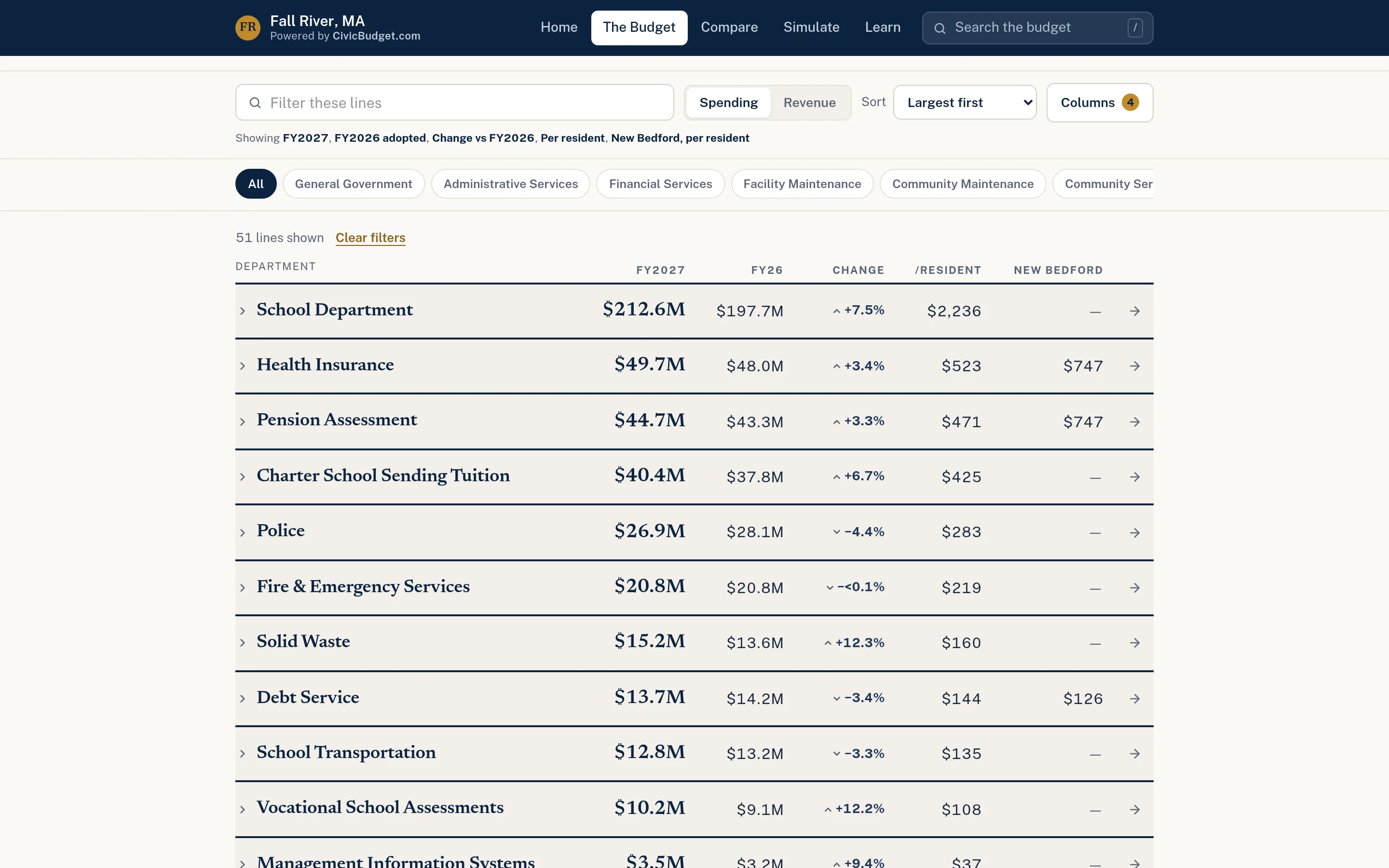
The ledger lists every line of the budget in a single table. Residents can switch between spending and revenue, filter by category using chips, type to filter, and sort by budget order, largest first, biggest increase, or alphabetically. Rows expand inline to show the current amount, the prior-year amount, the change, and the per-resident cost.
- Spending and revenue views
- Category chips and text filter
- Sort by size, change, budget order, or name
Add the context each reader needs.
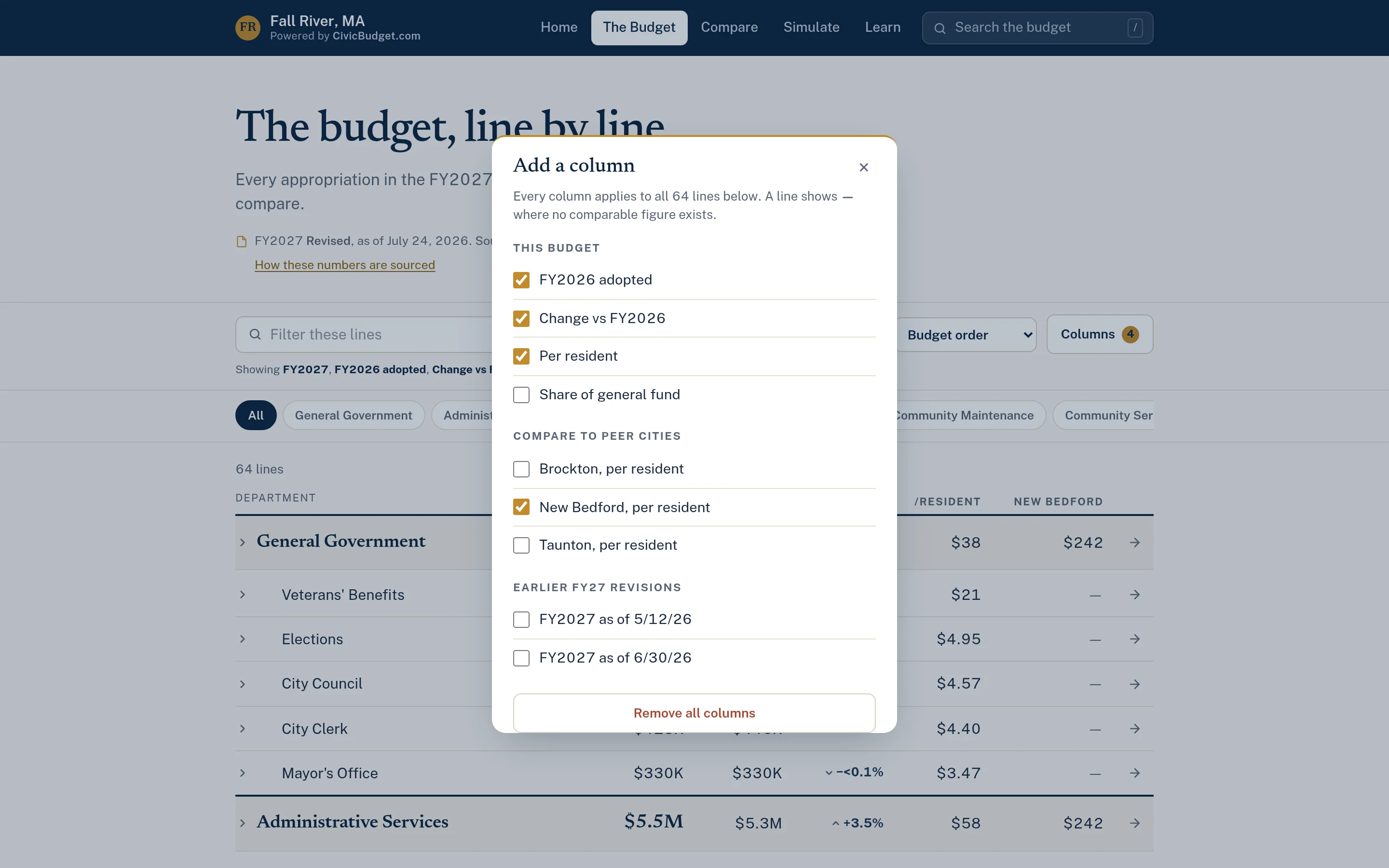
Readers choose which comparison columns to show beside each line: prior-year amount, change, per-resident cost, share of the general fund, peer-community per-resident figures, or amounts from earlier revisions of the same budget. Finance staff can use the same view to walk an audience through how figures moved during the budget process.
- Prior year, change, and per-resident columns
- Share of the general fund
- Peer communities and earlier budget revisions
Example: a resident asks what the town spends on snow removal
This is an illustrative workflow showing how a resident of a town might use the budget explorer before a budget hearing.
The explorer shows budgeted amounts from published documents, not actual expenditures or individual payments.
A resident wants to know how much the town budgets for snow and ice removal before a public hearing.
They type "snow" into the search box and select the matching line item.
The line's page shows this year's amount, the change from last year, the per-resident cost, and its share of the general fund.
They open the full ledger, filter to the public works category, and sort by biggest increase to see what else changed.
They follow the cited source to the official budget document and bring their question to the hearing.
Practical benefits for your municipality.
Answers with a link
Staff and officials can share a direct link to a department or line instead of a page number.
Context built in
Prior-year, per-resident, and share-of-budget figures help residents interpret each number.
Better-informed hearings
Residents arrive at hearings and town meetings having already found the basics.
Nothing new for finance to run
Built from documents you already publish, without new software for your finance team.
Keep exploring.
Features that work alongside budget explorer, in CivicBudget and across the CivicTally portfolio.
What can residents search?
Departments, line items, categories, and revenue sources. Suggestions appear as they type, each showing its type, category, and budgeted amount, and selecting one opens its page.
Does the explorer show actual spending or vendor payments?
No. The explorer presents budget allocations from your published budget documents. It does not show transactions, invoices, or payments to vendors, and it is not accounting or financial-management software.
Can it show both spending and revenue?
Yes. The ledger has a toggle between spending and revenue, and search covers revenue sources as well as departments and line items.
What happens when a revised budget is published?
New versions are added as they are released. Earlier revisions can stay available, so readers can add a column for an earlier version or see how a figure moved on its department page.
Is there anything beyond the explorer?
The core of CivicBudget is the explorer, department pages, and comparisons. An optional educational simulator is also available to help residents understand budget trade-offs, but it is not required.
See budget explorer with your own municipality in mind.
We’ll walk through CivicBudget using your departments, categories, and goals — and answer the practical questions about setup.